
Cut Paste Photos
DexatiPhotography
3.86.21K Reviews
- Version
- 11.1.0
- Installs
- 50.00M
- Age Rating
- Everyone
Screenshots
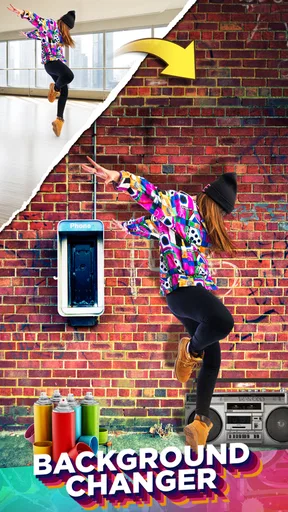


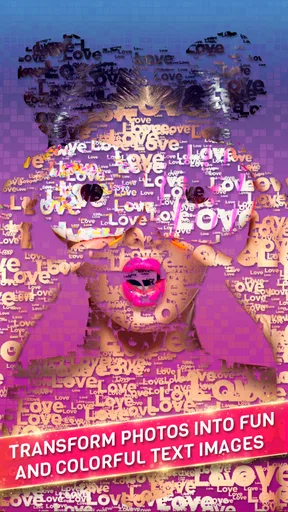
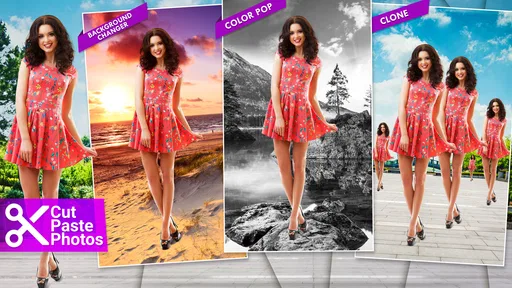
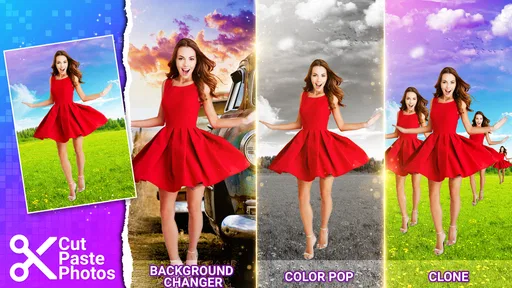
Our Review of Cut Paste Photos
 Analysis by Appyee
I often reach for Cut Paste Photos when I have two separate images but want one quick visual result: a person moved into another scene, an object placed somewhere new, or a simple collage assembled without opening a full desktop editor. This is a photography app from Dexati, and its central appeal is straightforward: it lets me cut a subject from one photo and paste it into another, then continue with collage, slideshow, and retouching work in the same place.
That focus makes it different from a camera app or a general social editor. I am not using it to capture a picture first; I am using it to reshape pictures I already have. The experience is best when I know exactly what I want to combine and do not need the precision or layered control of professional software. For a free app rated for Everyone, it offers a surprisingly broad path from a rough idea to a shareable image, although the process has a few points where patience matters.
From two ordinary photos to one finished image
When I turn two ordinary photos into one finished image, I find it helps to think beyond the cutout itself: the destination, scale, and mood all affect whether the result feels intentional. I’ll focus on how those choices shape a simple mobile workflow, then consider where this kind of editing is most useful and where a different tool may save frustration.
Starting with the right source images
A realistic example is a family photo where one person blinked. I can choose a better expression from another shot, cut that person out, and place the selected area over the less successful picture. Another everyday use is making a birthday greeting: I might isolate a child from a portrait, put the cutout over a colorful background, add other images in a collage, and finish with a short slideshow for relatives.
The quality of the starting images matters more than I expected. A subject with a clear outline and reasonable contrast against the background is much easier to separate than hair against leaves, glass, smoke, or a busy crowd. This is not a reason to avoid the app; it is a useful way to decide when it will save time. If the edge is obvious, the cut-and-paste workflow feels practical. If the edge is complicated, I should expect to zoom in and clean it carefully rather than accept the first selection.
I also prefer choosing the destination image before I begin cutting. That small decision helps me judge scale, direction, and lighting while working. A cutout that looks fine on a plain background can appear pasted on when the new scene has a strong horizon or a different light source. Thinking about the final image first prevents me from spending time refining a subject that will not fit the composition.
Making the cutout
The first hands-on stage is selecting the part of the photo I want to move. I treat this as a tracing task, not an automatic miracle. I work around the outer shape, inspect corners, and pay special attention to narrow spaces between arms, legs, handles, or other objects. A little extra background may be less noticeable than an accidentally missing piece of the subject, but too much background creates a visible halo after pasting.
One useful habit is to make the first selection slightly conservative, then inspect the result against the intended background. Bright skies and plain walls reveal leftover edges quickly. Dark or textured destinations can hide small imperfections, but they also make a badly cut outline look unnatural if the subject is resized. The app is most comfortable for uncomplicated shapes, portraits with a clean separation, and playful compositions where a perfectly invisible edit is not the goal.
This is also where the app shows its mobile-first character. I can work with a finger on a phone, but finger control is never as exact as a mouse or stylus. I would not choose this workflow for a product catalog, a professional composite, or an image where every strand of hair must remain perfect. For a birthday card, joke image, travel memory, or quick social post, the trade-off is much easier to accept.
Pasting, resizing, and arranging
Once the subject is separated, I place it over another image and adjust its position. I look for three things before calling it finished: whether the feet or base sit naturally, whether the size matches nearby objects, and whether the direction of the subject makes sense. A technically clean cutout can still look wrong if a person appears too large for the room or seems to stand on an impossible angle.
The handoff from cutting to composition is the most important part of the whole workflow. The app can move pixels from one image into another, but I still have to make the visual decisions. I usually start by matching size, then position, and only afterward consider extra decoration. Adding stickers, text, or several more pictures too early makes it harder to see whether the main composite actually works.
For a believable result, I keep the number of pasted elements under control. A single subject placed into a new background can look intentional. Several loosely cut objects may turn the image into a cluttered collage. That is not necessarily bad—the app is well suited to playful layouts—but it changes the goal from realism to graphic expression. Recognizing that difference helps me use the tool on its own terms.
Turning one composite into a larger project
After the main image is ready, I can move into the app’s broader photography tools. Its store summary also points to collage editing, slideshow creation, and retouching, so I see it less as a one-action utility and more as a compact editing route. A practical sequence is to create a cut-paste image first, place it into a collage with related photos, and then use those finished images in a slideshow.
This sequence is useful for a small event. Imagine returning from a school celebration with individual portraits, group shots, and a few decorative pictures. I could repair one awkward portrait with a cutout, arrange the best moments into a collage, and turn the selected images into a slideshow for people who were not there. The handoff between stages keeps me from exporting every small experiment to different apps.
Retouching has a different purpose from cutting. I use it for small distractions or visual cleanup rather than expecting it to transform an ordinary phone photo into a studio image. Keeping those jobs separate in my mind helps: cut and paste changes the arrangement, collage changes the presentation, slideshow changes the sequence, and retouching polishes the individual image.
What happens when the image leaves the app
The final result is only useful if it survives the next handoff. I might send the image to a family group, place it in a presentation, print it as a casual card, or add it to a slideshow. Before doing that, I inspect it at full size rather than relying only on the small preview. Edges that look acceptable in a thumbnail can become obvious when someone opens the picture on a larger screen.
I also keep an original copy of every source image. A cutout workflow encourages experimentation, and it is easy to make several versions with different backgrounds or placements. Keeping the originals separate means I can return to the source instead of trying to repair a flattened result later. This is particularly important when the app is being used for a family project where several people may request changes.
The finished image feels strongest when I give it one clear purpose. A humorous scene benefits from a bold, simple background. A memory collage benefits from consistent colors and spacing. A slideshow benefits from selecting fewer, better images rather than adding every available shot. The app gives me the tools to make these choices, but it does not replace the editing judgment behind them.
Where the workflow becomes frustrating
The biggest weakness is precision. Mobile cutouts are convenient, but they can become fiddly around hair, thin objects, patterned clothing, and overlapping people. I sometimes need to undo and try again, and the process can feel slow when the desired result depends on a clean silhouette. Users who regularly edit portraits at professional quality will probably be happier with a desktop editor or a more specialized masking tool.
There is also a learning curve in deciding how much to do inside one project. The app includes several kinds of photo work, which is convenient, but that breadth can make the interface feel busier than a single-purpose background remover. Someone looking only for one-tap subject isolation may find the extra collage, slideshow, and retouching direction unnecessary. I like having the options available, but I would not describe the experience as completely frictionless.
Another trade-off is control. Compared with a full editor built around layers, masks, and detailed adjustments, this app is designed for faster, more approachable compositions. That makes it easier to start, but it limits how far I can refine a complex scene. If I need exact color matching, sophisticated shadows, careful perspective correction, or a non-destructive multi-layer project, I would switch tools rather than force this app to behave like professional software.
In-app purchases range from $1.99 to $99.99 per item, so I would pay attention to what is included in the free experience before building a large project around a particular extra. The app itself is free to install, which makes trying the basic workflow low-risk, but the presence of optional purchases means I would not assume every editing convenience is available without cost.
Who will get the most from it
I think Cut Paste Photos suits people who want creative control without learning a desktop editor. It is a good match for making funny composites, simple greeting images, quick collages, and personal slideshows. Parents, students, casual creators, and anyone preparing a small visual project on a phone can benefit from having the cutout and presentation steps close together.
It is also helpful when speed matters more than absolute polish. If I need to place a friend into a holiday scene, assemble a visual invitation, or rescue one part of a family photo, I would rather use a focused mobile workflow than open a complicated editing suite. The app’s long presence in photography is reflected in its broad reach: it has passed over 50 million installs and holds a 3.8 average from around 278 thousand ratings. Those figures suggest a familiar, widely tried tool, though they do not guarantee that every editing task will feel equally smooth.
I would recommend skipping it if the main requirement is automatic, flawless background removal, advanced color grading, or professional compositing. I would also choose another option for a project that must preserve editable layers across repeated revisions. Its strengths are accessibility and variety, not the deep technical control expected from specialist software.
Practical details before installing
Cut Paste Photos is free, developed by Dexati, and listed for Everyone. It was released on September 12, 2014, and the current version is 11.1.0, with Android 6.0 or later required. That combination makes it accessible on many older Android devices, although the comfort of editing will still depend on screen size, storage, and how demanding the chosen images are.
I would start with a small test project rather than importing an entire photo library. Choose one clear subject, one uncomplicated destination, and make a single composite. That quickly answers the questions that matter in practice: whether the selection controls feel comfortable on the phone, whether the result looks clean enough for the intended audience, and whether the available workflow matches the kind of images I usually make.
It is worth deciding the output before editing as well. A picture meant for a messaging app can tolerate more playful imperfections than a print. A slideshow needs a consistent group of images, while a collage needs attention to spacing and visual balance. By setting that expectation first, I avoid judging a casual mobile tool against standards meant for studio production.
My overall experience
The best reason to use Cut Paste Photos is the complete, practical path from selected subject to finished shareable project. I can begin with a problem in one photo, cut out the useful part, place it into a new setting, and continue toward a collage or slideshow without constantly changing applications. That continuity is more valuable than the store summary alone suggests, especially for small personal projects.
At the same time, I would keep my expectations realistic. The app makes image manipulation approachable, but it does not remove the need for careful selection, sensible scaling, and a final inspection. The more complicated the edges and the more realistic the scene needs to look, the more its mobile limitations become visible. For simple, expressive edits, those limitations are manageable; for exact professional work, they are decisive.
After using it as a photography tool rather than merely a cutout button, I see it as a useful middle ground. It is broader than a basic background remover and easier to approach than a full editor, while still offering enough room for a personal workflow. If I wanted to recommend it to a friend, I would say: try it when you have a specific photo idea and want to finish it on your phone, but choose a more advanced alternative when precision, layers, or repeatable professional results matter more than convenience.
Verdict
Strengths of Cut Paste Photos
- Simple cutout tools make removing backgrounds easy for beginners.
- Lets you combine people and objects into creative photo collages.
- Useful for making stickers, memes, profile images, and social posts.
- Supports quick editing without requiring advanced photo-editing skills.
- Offers a convenient way to reuse subjects from existing photos.
Limitations of Cut Paste Photos
- Precise selections can be difficult around hair, fur, and other fine details.
- Some features or editing tools may require in-app purchases.
- Results can look rough when the original photo has a busy background.
- Ads may interrupt editing, especially in the free version.
- Export quality and available formats may vary depending on the device or plan.
Similar Picks in This Category
View All
Google Photos
Google LLC4.4

Gallery
Google LLC4.2

Picsart AI Photo Editor, Video
PicsArt, Inc.3.9

B612 AI Photo&Video Editor
SNOW Corporation4.1

BeautyPlus-Selfie Photo Editor
PIXOCIAL TECHNOLOGY (SINGAPORE) PTE. LTD.4.5

Remini - AI Photo Enhancer
Bending Spoons4.1
Frequently Asked Questions
What is Cut Paste Photos and what can I do with it?
Cut Paste Photos is a photo-editing app focused on removing subjects from one image and placing them into another. During testing, it was useful for creating collages, changing backgrounds, combining people or objects, and making playful compositions. Its main appeal is the simple cut-and-paste workflow, although the final result depends heavily on selecting the subject carefully and using suitable, well-lit source images.
Is Cut Paste Photos easy to use for beginners?
Yes. The app is designed around a relatively straightforward editing process: choose a photo, mark or erase the area you want to keep, copy the cutout, and paste it onto a different background. Beginners may need a little practice with edges, hair, and small details, since imprecise selections can look unnatural. The interface is generally accessible, but careful editing produces much better results.
Does Cut Paste Photos remove backgrounds automatically?
Cut Paste Photos may offer tools that help separate a subject from its background, but users should not expect every image to be processed perfectly with one tap. Automatic or guided selection works best when the subject contrasts clearly with the background. For complicated outlines, users usually need to refine the selection manually with erase, restore, or adjustment tools to avoid visible leftover areas.
Does Cut Paste Photos include ads or in-app purchases?
The availability of advertisements, premium tools, and optional purchases can vary depending on the app version, operating system, and region. Free users may encounter ads or limitations on certain editing features, exports, or available backgrounds. Before downloading, it is worth checking the current store listing for subscription details, one-time purchases, and whether the features you want are included in the free version.
Can I save and share edited images from Cut Paste Photos?
The app is intended to let users save their finished compositions and share them through services such as messaging apps or social networks, subject to the available export options. Before starting an important project, check the selected image quality and file format, because some free versions may apply limits or branding. Keeping the original photos is also recommended in case you need to edit the composition again.
